
How to Use the Curseforge App & the Basics
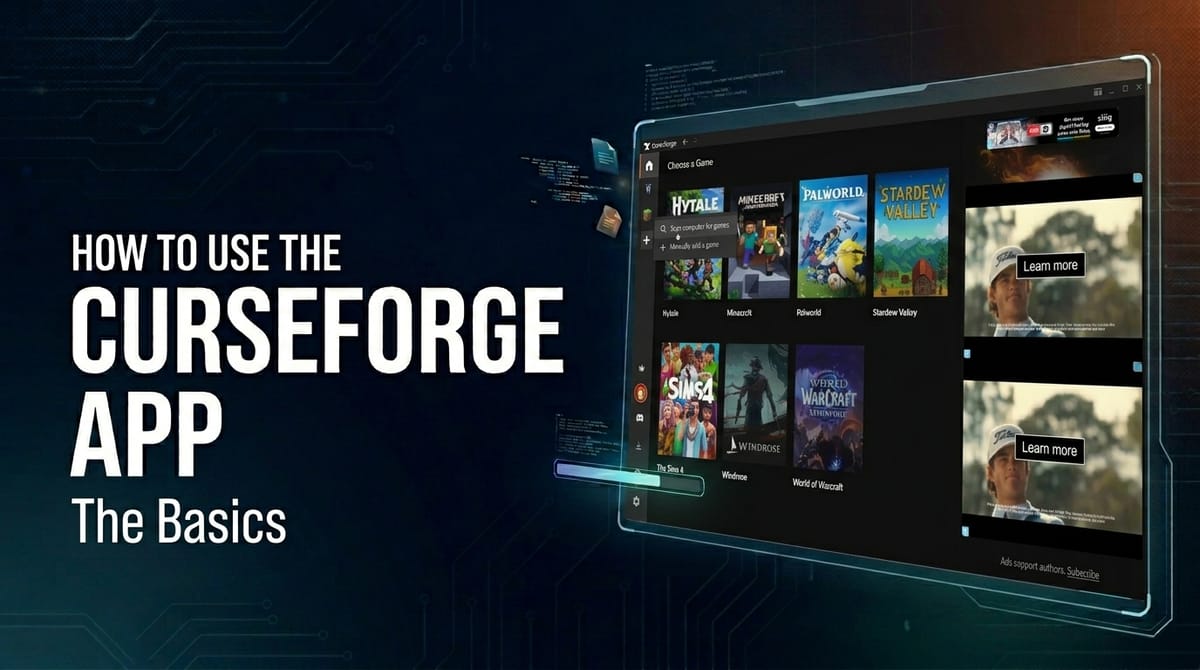
In this guide we will show you how to setup and use the Curseforge App. We will be covering the basics of the app including its layout and configuration. This guide is intended for beginners who are new to modding and want to use the Curseforge App to manage their mods.
Downloading & Installing
We have made another guide that covers the downloading and installation process of the Curseforge App, so we will not be covering it here.
Please refer to our guide on how to download and install the Curseforge App for detailed instructions on how to get the app up and running.
The Main Layout

This is the main layout of the Curseforge App. Please refer to the details below.
[1] Back & Forward Buttons
- The back and forward buttons allow you to navigate through the app's history.
- You can use them to go back to the previous page or forward to the next page you visited.
[2] Home Button
- The home button takes you back to the main page of the app.
- You can use it to quickly return to the main menu from any page in the app.
- Easily access your list of installed games from the main content section while on the home page.
[3] Installed Games
- The installed games section contains a list of games that are currently installed on your computer. These are large tiles that are displayed in the main content area of the home page.
- You may also see games next to this section that are not installed, but are supported by the app or recommended.
- Games that aren't installed are greyed out/darkened
[4] Installed Games (Sidebar)
- The sidebar (below the Home button), also displays a list of installed games only.
- You can click on a game in the sidebar to quickly access that game's page and manage its mods and addons.
- The tab's background color will change to a lighter shade of color to indicate that you are currently on that game's page.
[5] Add & Scan Games
- Allows you to manually add a game or automatically scan your hard drive(s) for installed games.

- To scan for games, follow these steps:
- Click the Scan computer for games button.
- Select the hard drive(s) you want to scan for games by clicking the checkboxes next to them. You can select and scan multiple hard drives.
- Click the Scan button to start the scanning process.

- To add a game manually, follow these steps:
- Click the Manually add a game button.
- This will open the file explorer, select the folder or directory where your game is installed.
- For example, on Windows this is usually
%APPDATA%/.minecraftby default.
- For example, on Windows this is usually
[6] Ads to Support Mod Authors
- If you aren't a premium user, you will always see ads on the right side of the app on every page.
- These ads are used to support mod authors and the app itself, so please consider supporting them by becoming a premium member if you enjoy using the app and want to support the modding community.
[7] Premium Page
- This page contains information about the premium membership and its benefits.
- You can also subscribe to the premium membership from this page.

[1] Premium Benefits
- 70% of your subscription payments go to mod authors.
- Ads will no longer display in the app or on the website.
- You can now customize your app's theme and layout.
- Please refer to the Themes & Layouts section below for more details.
[2] Monthly & Yearly Subscription Options
- The monthly subscription costs 2.99 USD/ per month.
- This would come out to be $35.88 per year.
- The yearly subscription costs $30.00 per year.
- This would come out to be $2.50 per month.
- This saves 16% compared to the monthly subscription!
[8] Login Through Curseforge or Profile Settings
- This button allows you to log in to your Curseforge account within the app.
- When logged in, this button will change to your profile's avatar. When clicking on it, will oepn a menu with options to view your profile or log out of your account.

[9] Discord & Social Media Menu
- This button appears as a Discord icon.
- When hovering over the icon, a menu will slide out with links to the app's social media pages, Discord server, and blog.

[10] Download Manager Page
- The download manager page allows you to view your current and past downloads, as well as manage them.
- On the In Progress tab, you can see the mods and modpacks that are currently being downloaded, along with their progress.

- This tab indicates the number of downloads in progress (currently).
- This tab indicates the number of completed downloads.
- This checkbox allows you to select one or more mods or modpacks from either tabs to manage them.
- On the In Progress tab, you can cancel the selected downloads.
- On the Completed tab, you can delete the selected downloads from your download history.
- The name of the mod or modpack that is being downloaded or has been downloaded.
- The download progress of the mod or modpack.
- Cancels the download in progress of the mod or modpack.
- This notification indicates how many downloads you have in progress.
- On the Completed tab, you can see the mods and modpacks that have been downloaded in the past.

- You can use the Select All checkbox to select all downloads in the list at once.
- You can use the Search button to search for a specific mod or modpack in your download history.
- You can use the Sort button to sort your download history.
- You can click the X button to delete a download from your download history.
[11] Support & Info Menu
- This menu contains links to the app's help center, Discord server, release notes, and other useful information about the app and its features.

- Browse our Help Center: This button opens up a menu where you can search for answers to common questions and issues related to the app.
- Get Help on Discord: This link takes you to the app's official Discord server, where you can ask for help, share your experiences, and connect with other users and mod authors.
- Open a Ticket: This button opens a menu that allows you to create a support ticket with the app's support team if you are experiencing any issues or need assistance with anything related to the app.
- Create logs.zip: This button allows you to export the app's logs in a ZIP file.
- This can be useful for troubleshooting issues with the app or providing information to the support team when you open a ticket.
- By default, the ZIP file is exported to the user's desktop and when exported, the app will automatically open the file explorer to the location of the exported ZIP file for easy access.
- In most cases on Windows and maybe other operating systems, the exported file name is in the format of
CurseForgeLogs_YYYY-MM-DD_HH-MM-SS.zip
- Suggest a Feature: This link takes you to the app's feature request page on Overwolf, where you can suggest new features or improvements for the app.
- You can also upvote existing feature requests that you would like to see implemented in the future, similar to how you would on a platform like Reddit.
- Show Intro: This button activates the app's intro that is displayed to new users.
- At first, this plays a small animation video.
- After the animation video, it takes you through a couple of short slides that explain what the app is and a few other useful tips for new users.
- What's New: This button brings up a menu that lists a few new features and improvements that have been recently added to the app in the latest update(s).
- There are a limited amount of features listed on each page.
- You can also use the Previous and Next buttons to navigate through the pages of new features.
- Release Notes: Opens up a menu with the app's release notes.
- You may use the Previous and Next buttons to navigate through the pages of release notes, similar to the What's New section above.
[12] App Settings
- Access the settings menu by clicking the gear icon in the bottom-left corner of the app.
- Please refer to the main layout above for the location of the settings button (App Settings arrow indicator).

- CurseForge: This tab contains settings related to the app itself.
- Addons: This tab contains settings related to addons and mod management.
- Languages: This tab allows you to change the app's language.
- Themes: This tab allows you to customize the app's theme and layout (premium only).
- Privacy: This tab contains settings related to your privacy and data collection preferences.
- Advanced: This tab contains advanced settings for the app.
- Game Specific: This section contains tabs with additional settings that are specific to each game that is supported by the app.
- This button allows you to add a game manually or scan your computer for installed games, similar to the Add & Scan Games button on the home page, but this one takes you to the settings page for it.
[1] Curseforge App (App Settings)

- When I close CurseForge: This setting controls the behavior of the app when you close it.
- Hide CurseForge: This option will hide the app which often minimizes it to the system tray, allowing it to continue running in the background and receive updates and notifications without being visible on the taskbar.
- Exit CurseForge: This option will completely exit the app, closing it and stopping all background processes. You will not receive updates or notifications until you reopen the app.
- System Startup Behavior: This contains a setting below.
- Run CurseForge on startup: This option will automatically launch the app when you start your computer, allowing you to have it ready and running in the background without having to manually open it each time.
- Which game to focus on when CurseForge launches: This setting allows you to choose which game's page the app will open to by default when you launch it.
- Automatic (Last focused game when CurseForge closed): This option will make the app open to the page of the game that you were last on when you closed the app.
- There will be an additional option for each game that is installed and supported by the app, allowing you to set a specific game page to open to by default when you launch the app.
- Date format: This setting allows you to choose the date format that is used in the app.
- You can choose Default to use the default date format for the app.
- You can choose from a variety of date formats, such as
MM/DD/YYYY,DD/MM/YYYY,YYYY/MM/DD, and many more.
[2] Addons

- Application Content path: An optional custom content path for games that support it.
- Check for updates: How often to automatically check for updates for your installed mods and addons.
- You can choose every every 15 minutes, 30 minutes, 1 hour, and 3 hours.
- Simultaneous Downloads: This setting allows you to choose how many downloads can be in progress at the same time when downloading mods and modpacks.
- You can choose to allow up to 20 simultaneous downloads at once.
- Setting this to a higher number may increase the download speed if you have a fast internet connection, but it may also put more strain on your computer's resources and network bandwidth.
- Setting it to a lower number may reduce the strain on your computer and network, but it may also decrease the download speed.
- Backup Space: How much disk space to reserve for backups.
- You can reserve up to 10 MBs of disk space.
[3] Languages
- This tab allows you to change the app's language.
- You must choose a language from the table of languages that includes two columns (left and right).
- Left: The language's name in its native form.
- Right: The language's name in your current language, which can be useful for finding a specific language if you don't know its name in its native form.

[4] Themes
- This page allows you to customize the app's theme and layout.
- Free and premium-only themes and layouts are available, with more options for premium members.

- Classic (Free): This section includes two free themes that are available to all users, regardless of their subscription status.
- Curseforge Classic (Default): A dark theme and the classic look of the app that many users are familiar with.

- Curseforge Light: A light theme with a bright and clean appearance.

- Curseforge Classic (Default): A dark theme and the classic look of the app that many users are familiar with.
- Colorblind (Free): This section includes themes that are designed to be more accessible for users with color vision deficiencies.
- Colorblind Classic: A dark theme with color adjustments to improve visibility for users with color blindness.

- Colorblind Light: A light theme with color adjustments to improve visibility for users with color blindness.

- Colorblind Classic: A dark theme with color adjustments to improve visibility for users with color blindness.
- Premium: This section includes additional themes and layouts that are only available to premium members.
- Pixelforge:

- Lifeforge:

- Fantasyforge:

- Spookyforge:

- Pixelforge:
[5] Privacy
- The privacy tab contains settings related to your privacy and data collection preferences.

- Discord Rich Presence: This setting allows you to enable or disable Discord Rich Presence integration with the app.
- When enabled: This feature will display your current activity in the app (such as browsing mods, downloading, etc.) on your Discord profile for your friends or other users to see.

- When enabled: This feature will display your current activity in the app (such as browsing mods, downloading, etc.) on your Discord profile for your friends or other users to see.
- App Recommendations: This settings allows you to enable or disable personalized app recommendations based on your activity and preferences in the app.
- When enabled: The app will collect data on your activity and preferences to provide you with personalized recommendations for mods, modpacks, and other content that you may be interested in.
- Optimize performance and stability: This setting allows you to enable or disable the app's performance and stability optimizations.
- When enabled: The app will collect and process diagnostic data to help Curseforge identify and fix performance issues.
- It is recommended to keep this setting enabled to help improve the app's performance and stability over time, but you can disable it if you have concerns about data collection or if you want to reduce the amount of data that the app collects.
- Customize your experience: This setting allows the app to collect analytical information and use that to customize your experience in the app, such as allowing you to test new features, personalizing ads, and more.
- When enabled: The app will collect analytical data to provide you with a more personalized experience, such as showing you relevant content and ads based on your activity and preferences in the app.
- You can disable this setting if you have concerns about data collection or if you want to reduce the amount of data that the app collects, but keep in mind that this may result in a less personalized experience in the app.
[6] Advanced

- Number of file scan jobs: This setting controls the number of concurrent file scan jobs that can run at the same time when scanning for games or mods on your computer.
- The max number of file scan jobs you can set is 24.
- Log Level: This setting allows you to choose the level of detail that is included in the app's logs.
- You can turn logging off by selecting the Off option.
- You can select one or more log levels to include in the logs:
- Trace: Detailed information about the app's operations, including fine-grained events and actions that occur within the app.
- Debug: Information that is useful for debugging and troubleshooting issues with the app, such as error messages, warnings, and other relevant information that can help identify and resolve problems.
- Info: General information about the app's operations and activities.
- Warning: Potential issues or problems that may not be critical but could affect the app's performance or functionality.
- Error: Errors and exceptions that occur within the app, which may indicate problems that need to be addressed.
- Fatal: Critical errors that cause the app to crash or become unusable.
[7] Game Specific
- This section contains tabs with additional settings that are specific to each game that is supported by the app.
- These settings may include options for managing mods, configuring game-specific features, and more.
[8] Add & Scan Game
- This button allows you to manually add a game or automatically scan your hard drive(s) for installed games, similar to the Add & Scan Games button on the home page, but this one takes you to the settings page for it.
[13] Themes & Layouts (Premium Only)
- This menu allows you to switch between popular themes and layouts.

- Themes: This section allows you to select a theme for the app. This includes both free and premium themes.
- This does NOT include the colorblind themes, which can be found in the Themes tab in the settings menu detailed above.
- App Layout: This section allows you to select a layout for the app. There are only two options available for this setting.
- Art & Content: The default layout of the app.
- Content only: A Premium-only layout that focuses on the content.
What's Next?
Now that you have a basic understanding of the app's layout and settings, you can start exploring the app and managing your mods and addons!
We will be creating separate guides that cover how to download and install mods and modpacks through Curseforge for each game. However, in general, the process is pretty straightforward and similar across all games.
After you've added a game through Curseforge, you can go to its dedicated page by clicking on the game from the home page or the sidebar. From there:
- Select My Modpacks to view and manage your installed modpacks for that game.
- Select Discover to find new and trending mods and modpacks for that game.
- Select Browse to browse all available mods and modpacks for that game.
- Select the Install button on a mod or modpack to install it, and the app will take care of the rest for you if the specific mod or modpack is supported by the app. If it isn't supported, you may need to install it manually by downloading it from the website and placing it in the appropriate folder for that game.
Notes
- We are not affiliated with Curseforge or Overwolf in any way. This guide is created independently by the modding community to help users understand how to use the Curseforge App and its features.
- The information in this guide is accurate as of the time of writing, but the app may receive updates and changes that may affect the layout and features described in this guide.
- If you'd like to make edits to the guide, please read the message at the end of the article for instructions.
See Also!
Conclusion
That's all for this guide! We hope it has been helpful in getting you started with the Curseforge App and understanding its layout and settings.
Guides we create are always open to edits and improvements, so if you have any suggestions or notice any issues, feel free to contribute by creating a pull request on our GitHub repository!
Please join our Discord server if you have any questions or need help with anything related to modding or our guides!